

Retrieve a Gtrace
A Gtrace records what the device itself is doing, which makes it the counterpart to the SDK log: the SDK log only covers traffic between the device and your peripheral. Gtrace is a log that records general device behavior. The Nayax reader generates it and sends it to Nayax Core, so it is separate from the SDK logs and never appears in the SDK’s command output. To retrieve a Gtrace, open the relevant machine in Nayax Core and follow these steps.1
Request the Gtrace
Go to Actions > Request Gtrace.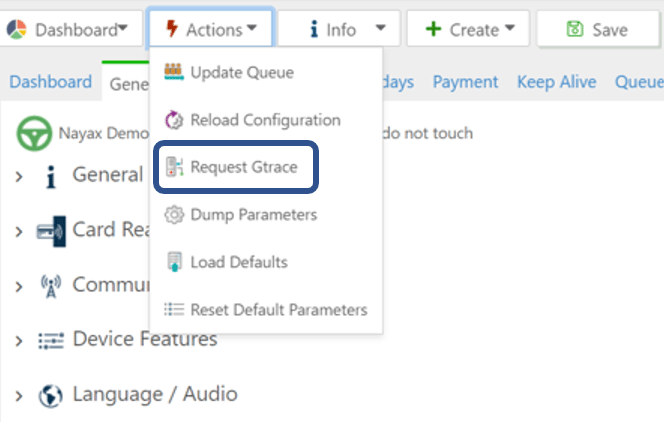
2
Open the Dex Tab
Once the request is sent, one or more new rows appear in the table under
the Dex tab, with a Dex Source of 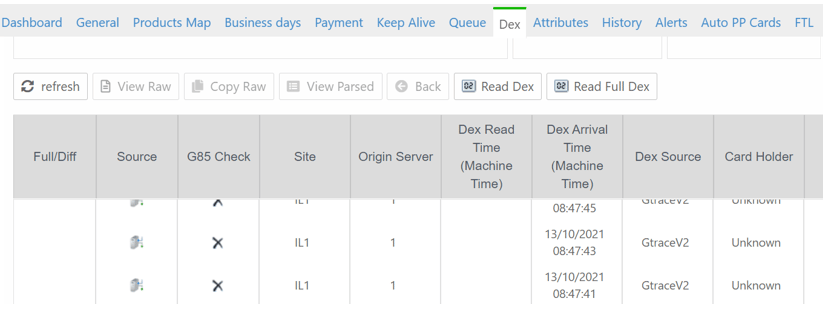
GtraceV2.3
View the Parsed Log
Select the row for the log you want, then select View Parsed to read
the full log.
The device must be online. Nayax Core can only collect a Gtrace from a
device that is powered on and connected.
Retrieve Last Alerts
Last Alerts holds both the alerts the device raises on its own and the alerts your integration sends with thealert method, documented in
General Marshall Events.
Last Alerts is a log in Nayax Core that records the alerts exchanged between
the device and the Nayax servers. It sits under the device’s virtual machine.
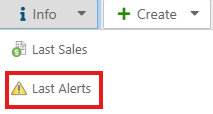
To read it, open the relevant virtual machine and go to Info >
Last Alerts.
Manage the Product Map
Marshall does not read the product map during a transaction. The product code your peripheral sends drives the flow, and the price comes from the Vend Request rather than from the map. The only field that matters to you is the product name, which is what turns anunknown product in Last Sales or in an
eReceipt into a readable name.
The product map lets you manage the products assigned to your peripherals from
Nayax Core. Each row maps a product code to a product name and cost, and that
name is what appears in Last Sales, the Dynamic Transaction Monitor, and the
eReceipt file.
To add a product, open the Product Map tab, go to Map > Add BIN,
then enter the product code, product group, PA code, and MDB code. The MDB code
is the one that must match the product code your integration sends. Select
Save to store the row.
Example
The peripheral sends a Vend Request for product code1 with a price of
10.00. The product map has a row for product code 1 named Apple with a
cost of 20.00.
The consumer is charged 10.00, the price from the Vend Request. In Last Sales
and the Dynamic Transaction Monitor, the transaction shows product code 1
alongside the name Apple.
Nayax U has step-by-step guides for the product map itself:
Request a Refund
Marshall has no refund feature of its own, because a refund concerns the payment rather than the communication between your machine and the device. Refunds run through Nayax Core. A refund returns money to a consumer for a transaction that has already completed and settled. To request one, go to the Dynamic Transactions Monitor page in Nayax Core, right-click the relevant transaction, select Request refund, and confirm. The Nayax team reviews the request. Once it is approved, the funds return to the account within 1 to 2 days.If you have not charged the consumer yet, you do not need a refund. Respond
with Vend Failure, or close the session with a status other than
Status Ok.
See Create Payments.Next steps
SDK's Log Generation
Turn on SDK logging and find the log file that records peripheral traffic.
Create Payments
Set up and manage cashless payment transactions from your controller.