> ## Documentation Index
> Fetch the complete documentation index at: https://nayax-44d6e37b-docs-marshall-faq-redistribution.mintlify.site/llms.txt
> Use this file to discover all available pages before exploring further.
# Create New Machine
export const EndpointCard = ({method = "API", title, children, href, arrow = true}) => {
const METHOD_STYLES = {
GET: {
bg: "mint-bg-green-400/20 dark:mint-bg-green-400/20",
text: "mint-text-green-700 dark:mint-text-green-400",
border: "mint-border-green-300 dark:mint-border-green-700"
},
POST: {
bg: "mint-bg-blue-400/20 dark:mint-bg-blue-400/20",
text: "mint-text-blue-700 dark:mint-text-blue-400"
},
PUT: {
bg: "mint-bg-yellow-400/20 dark:mint-bg-yellow-400/20",
text: "mint-text-yellow-700 dark:mint-text-yellow-400"
},
PATCH: {
bg: "mint-bg-orange-400/20 dark:mint-bg-orange-400/20",
text: "mint-text-orange-700 dark:mint-text-orange-400"
},
DELETE: {
bg: "mint-bg-red-400/20 dark:mint-bg-red-400/20",
text: "mint-text-red-700 dark:mint-text-red-400"
},
API: {
bg: "mint-bg-black",
text: "mint-text-white"
}
};
const MethodBadge = ({method}) => {
const style = METHOD_STYLES[method?.toUpperCase()] ?? METHOD_STYLES.GET;
return
{method?.toUpperCase()}
;
};
const content =
{}
{title}
{children &&
{children}
}
{}
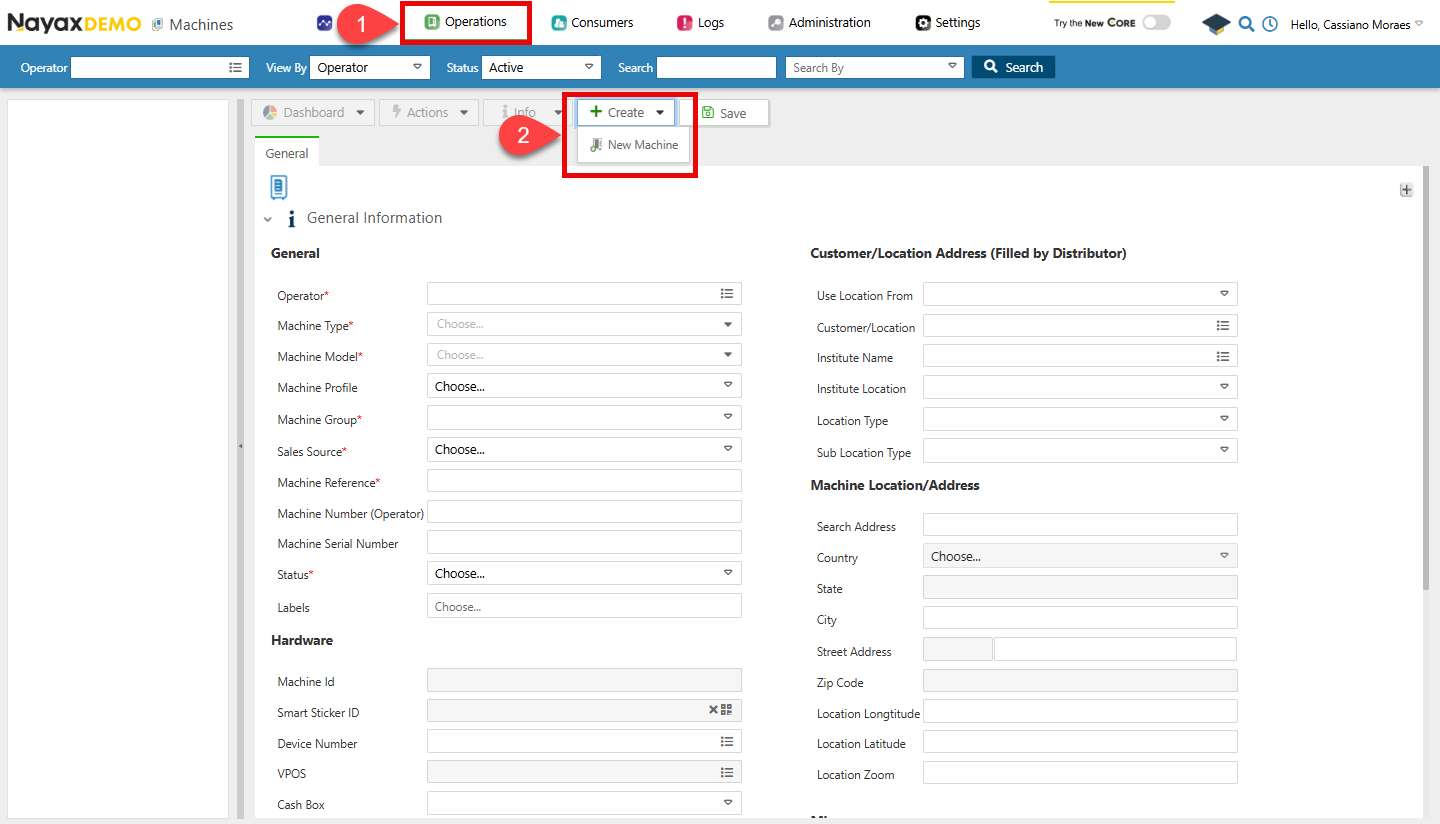 3. Now you can fill all the details on the form, once you are finished click on **Save**.
Lynx API allows you to do this process programmatically through a POST request. This page will guide you on how to do so using the endpoint below:
**Authentication**
Refer to the [Security & Token](/docs/manage-data-operations/lynx-api/security) page of this documentation to learn how to access your tokens, and how to properly use it to authenticate your API requests.
## Request to Create New Machine
Use the [Create New Machine](/reference/lynx/machines/create-new-machine) endpoint to create a new machine. The following code block exemplifies the request to create a new machine:
```sh Request theme={null}
curl -X POST "https://qa-lynx.nayax.com/operational/v1/machines" \
-H "Authorization: Bearer " \
-H "Content-Type: application/json" \
-d '{
"ActorID": 2001492652,
"CountryID": 105,
"CurrencyID": 2,
"MachineGroupID": 210631347,
"MachineModelID": 305,
"MachineName": "New Vending Machine",
"MachineStatusBit": 1,
"LanguageID": 7,
"SalesSourceID": 30000512,
"MachineTypeID": 555001,
"GeoCountry": 1
}'
```
```json Response theme={null}
{
"MachineID": 942488501,
"ActorID": 2001492652,
"CountryID": 105,
"CurrencyID": 2,
"InstituteID": 3001,
"LocationID": 4001,
"MachineGroupID": 210631347,
"MachineModelID": 305,
"MachineName": "Marshall Vending",
"MachineNumber": "MV001",
"MachineStatusBit": 1,
"LanguageID": 7,
"OperatorActorID": 2001492652,
"DistributorActorID": 3001492652,
"AreaActorID": 4001492652,
"SalesSourceID": 30000512,
"MachineTypeID": 555001,
"SerialNumber": "SN12345X",
"VPOSSerialNumber": "VP12345",
"DeviceSerialNumber": "SN12345X",
"VPOSID": 98765,
"DeviceID": 123456,
"UseLocationFrom": 1,
"GeoCountry": 1,
"GeoState": "New York",
"GeoCity": "New York City",
"GeoAddress": "123 Main St",
"GeoStreetNumber": "123",
"GeoLongitude": -73.935242,
"GeoLatitude": 40.730610,
"GeoZoom": 15,
"GeoZipCode": "10001",
"SearchAddress": "123 Main St, New York, NY",
"Remarks": "High-traffic area",
"DexType": 2,
"DexMidnightReadsEnableBit": true,
"DexG85CheckEnableBit": true,
"DexDivideBillsBy": 100,
"DexG85CheckParsingFilterEnableBit": true,
"UseCardPriceCorrectCashPriceBit": false,
"MachineTimeZoneOffset": -5,
"DexReadInterval": 30,
"LocationType": 1,
"ApplyDisplayPickListSelectionsToReportsBit": true,
"DisplayPickListSelectionsAs": 1,
"LastUpdated": "2024-10-09T14:38:53.474Z",
"MachineProfile": 0,
"CityID": 101,
"RegionID": 201,
"CountryDialingCode": 1,
"DexIgnoreCRCCheckBit": true,
"DexParseLABit": false,
"ProductMapID": 501,
"Longitude": -73.935242,
"Latitude": 40.730610,
"DexTotalSalesMinusCardSalesBit": true,
"RouteActorID": 5001492652,
"MachineLogicAlertEnableBit": true,
"AlertRuleSetId": 601,
"MachineMemberTypePricingEnableBit": false,
"DexMultiplyCoinsBy": 10,
"DexMultiplyTubesBy": 5,
"CustomerID": 12345,
"CommissionType": 2,
"CommissionDefaultValue": 0.05,
"CreatedBy": 105,
"CreatedOn": "2023-06-01T12:00:00.000Z",
"UpdateBy": 107,
"TubeSource": 2,
"BillSource": 3,
"SmartStickerId": 8080,
"EnableRemoveVendBit": true,
"EnableEreceiptBit": true,
"ProductMapAutomaticCreationBit": true,
"Refs": {
"Documentation": "https://lynx.docs.com/machine/942488501"
}
}
]
```
You need to provide various mandatory fields in the body parameters, such as:
| **Field Name** | **Description** |
| ------------------ | ----------------------------------------------------------------------------------------------------------------------------------------------------------------------------------------------------------------------------------------------------------------- |
| `ActorID` | The operator's ID under which the machine is being created. |
| `CountryID` | ID representing the machine's country. Use the [Get Countries](/reference/lynx/lookups/get-countries) endpoint for a list of available country codes. |
| `CurrencyID` | ID for the machine's currency. Use the [Get Currencies](/reference/lynx/lookups/get-currencies) endpoint for a list of available currency codes. |
| `MachineGroupID` | ID of the group to which the machine belongs. You can view existing groups with the [List All Machine Groups for Actor](/reference/lynx/actors/list-all-machine-groups-for-actor) endpoint. |
| `MachineModelID` | ID for the machine's model. To obtain the machine model of an existing machine, you can copy and paste the `MachineModelId` from the [Get Specific Machine Basic Info](/reference/lynx/machines/get-specific-machine-basic-info) endpoint for a specific machine. |
| `MachineName` | The name of the virtual machine. |
| `MachineStatusBit` | Status of the machine: `1` for active, `2` for inactive. |
| `LanguageID` | ID represents the language used by the machine. |
| `SalesSourceID` | ID indicating the sales source. should be `30000512`, which means live transactions (other options are irrelevant) |
| `MachineTypeID` | The type of the machine determines its icon in Nayax Core. |
| `GeoCountry` | Country code where the machine is located. |
You will receive a response containing the details of the newly created machine, including the newly created machine's `MachineID`.
## Verify Creation
Once a new machine is created, you can verify it in Nayax Core, as in the steps below:
1. Go to **Operations > Machines**.
2. Use the **Search** feature to filter the Machine, and select it from the list.
3. Now you can fill all the details on the form, once you are finished click on **Save**.
Lynx API allows you to do this process programmatically through a POST request. This page will guide you on how to do so using the endpoint below:
**Authentication**
Refer to the [Security & Token](/docs/manage-data-operations/lynx-api/security) page of this documentation to learn how to access your tokens, and how to properly use it to authenticate your API requests.
## Request to Create New Machine
Use the [Create New Machine](/reference/lynx/machines/create-new-machine) endpoint to create a new machine. The following code block exemplifies the request to create a new machine:
```sh Request theme={null}
curl -X POST "https://qa-lynx.nayax.com/operational/v1/machines" \
-H "Authorization: Bearer " \
-H "Content-Type: application/json" \
-d '{
"ActorID": 2001492652,
"CountryID": 105,
"CurrencyID": 2,
"MachineGroupID": 210631347,
"MachineModelID": 305,
"MachineName": "New Vending Machine",
"MachineStatusBit": 1,
"LanguageID": 7,
"SalesSourceID": 30000512,
"MachineTypeID": 555001,
"GeoCountry": 1
}'
```
```json Response theme={null}
{
"MachineID": 942488501,
"ActorID": 2001492652,
"CountryID": 105,
"CurrencyID": 2,
"InstituteID": 3001,
"LocationID": 4001,
"MachineGroupID": 210631347,
"MachineModelID": 305,
"MachineName": "Marshall Vending",
"MachineNumber": "MV001",
"MachineStatusBit": 1,
"LanguageID": 7,
"OperatorActorID": 2001492652,
"DistributorActorID": 3001492652,
"AreaActorID": 4001492652,
"SalesSourceID": 30000512,
"MachineTypeID": 555001,
"SerialNumber": "SN12345X",
"VPOSSerialNumber": "VP12345",
"DeviceSerialNumber": "SN12345X",
"VPOSID": 98765,
"DeviceID": 123456,
"UseLocationFrom": 1,
"GeoCountry": 1,
"GeoState": "New York",
"GeoCity": "New York City",
"GeoAddress": "123 Main St",
"GeoStreetNumber": "123",
"GeoLongitude": -73.935242,
"GeoLatitude": 40.730610,
"GeoZoom": 15,
"GeoZipCode": "10001",
"SearchAddress": "123 Main St, New York, NY",
"Remarks": "High-traffic area",
"DexType": 2,
"DexMidnightReadsEnableBit": true,
"DexG85CheckEnableBit": true,
"DexDivideBillsBy": 100,
"DexG85CheckParsingFilterEnableBit": true,
"UseCardPriceCorrectCashPriceBit": false,
"MachineTimeZoneOffset": -5,
"DexReadInterval": 30,
"LocationType": 1,
"ApplyDisplayPickListSelectionsToReportsBit": true,
"DisplayPickListSelectionsAs": 1,
"LastUpdated": "2024-10-09T14:38:53.474Z",
"MachineProfile": 0,
"CityID": 101,
"RegionID": 201,
"CountryDialingCode": 1,
"DexIgnoreCRCCheckBit": true,
"DexParseLABit": false,
"ProductMapID": 501,
"Longitude": -73.935242,
"Latitude": 40.730610,
"DexTotalSalesMinusCardSalesBit": true,
"RouteActorID": 5001492652,
"MachineLogicAlertEnableBit": true,
"AlertRuleSetId": 601,
"MachineMemberTypePricingEnableBit": false,
"DexMultiplyCoinsBy": 10,
"DexMultiplyTubesBy": 5,
"CustomerID": 12345,
"CommissionType": 2,
"CommissionDefaultValue": 0.05,
"CreatedBy": 105,
"CreatedOn": "2023-06-01T12:00:00.000Z",
"UpdateBy": 107,
"TubeSource": 2,
"BillSource": 3,
"SmartStickerId": 8080,
"EnableRemoveVendBit": true,
"EnableEreceiptBit": true,
"ProductMapAutomaticCreationBit": true,
"Refs": {
"Documentation": "https://lynx.docs.com/machine/942488501"
}
}
]
```
You need to provide various mandatory fields in the body parameters, such as:
| **Field Name** | **Description** |
| ------------------ | ----------------------------------------------------------------------------------------------------------------------------------------------------------------------------------------------------------------------------------------------------------------- |
| `ActorID` | The operator's ID under which the machine is being created. |
| `CountryID` | ID representing the machine's country. Use the [Get Countries](/reference/lynx/lookups/get-countries) endpoint for a list of available country codes. |
| `CurrencyID` | ID for the machine's currency. Use the [Get Currencies](/reference/lynx/lookups/get-currencies) endpoint for a list of available currency codes. |
| `MachineGroupID` | ID of the group to which the machine belongs. You can view existing groups with the [List All Machine Groups for Actor](/reference/lynx/actors/list-all-machine-groups-for-actor) endpoint. |
| `MachineModelID` | ID for the machine's model. To obtain the machine model of an existing machine, you can copy and paste the `MachineModelId` from the [Get Specific Machine Basic Info](/reference/lynx/machines/get-specific-machine-basic-info) endpoint for a specific machine. |
| `MachineName` | The name of the virtual machine. |
| `MachineStatusBit` | Status of the machine: `1` for active, `2` for inactive. |
| `LanguageID` | ID represents the language used by the machine. |
| `SalesSourceID` | ID indicating the sales source. should be `30000512`, which means live transactions (other options are irrelevant) |
| `MachineTypeID` | The type of the machine determines its icon in Nayax Core. |
| `GeoCountry` | Country code where the machine is located. |
You will receive a response containing the details of the newly created machine, including the newly created machine's `MachineID`.
## Verify Creation
Once a new machine is created, you can verify it in Nayax Core, as in the steps below:
1. Go to **Operations > Machines**.
2. Use the **Search** feature to filter the Machine, and select it from the list.
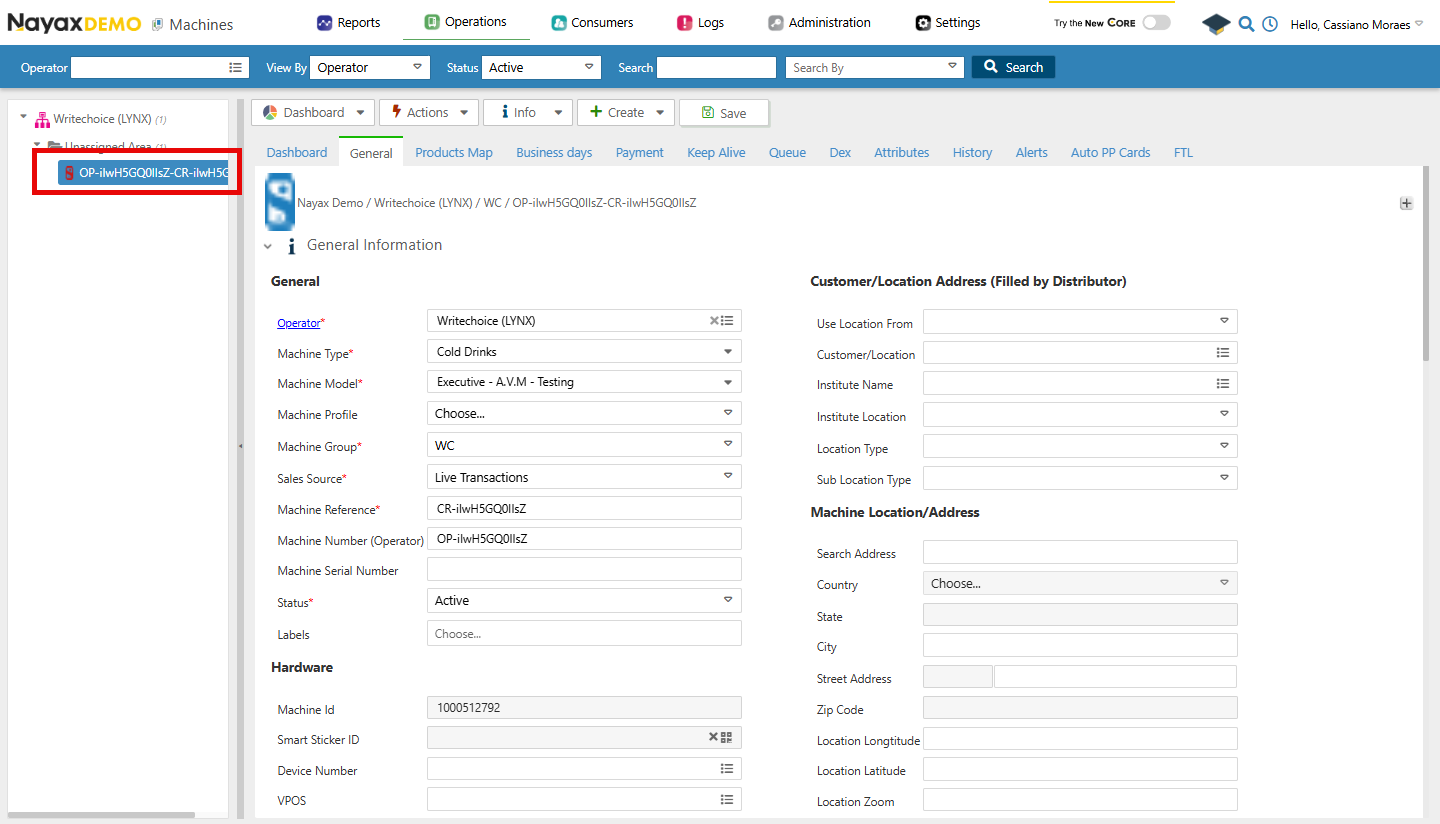 As you can see in the image above, once you select it you can see all its information on the **General Information** tab.