> ## Documentation Index
> Fetch the complete documentation index at: https://nayax-44d6e37b-docs-marshall-faq-redistribution.mintlify.site/llms.txt
> Use this file to discover all available pages before exploring further.
# C# & Java SDK Integration
This guide shows you how to integrate the **Marshall SDK** into your **C#** or **Java** application. You’ll learn how to:
* Import the SDK package into your project
* Create and configure a VMC settings object
* Set up the serial (**COM**) port for communication
* Register event listeners and start the SDK
The instructions are presented side by side for both languages.
## Prerequisites
Before you begin, make sure you have:
* Downloaded the appropriate SDK files, `.jar` for **Java** or `.dll` for **C#**.
* Identified the correct **COM** port for the Marshall cable.
* For Java- ensure that you have Java 8 (also known as Java 1.8) and above. Note that for the newest version of Nayax's Java SDK (0.1.6.8) you'd need Java 11- but should you like us to, we can look into having it be compiled with Java 8.
## Integrate Marshall
To perform the integration, follow the steps below:
1. Import the provided `.JAR` or SDK DLL file into your project.
2. Import the necessary namespaces in your code.
```java Java theme={null}
import com.bitmick.marshall.models.*;
```
```csharp C# theme={null}
using com.bitmick.marshall.models;
```
3. Instantiate a VMC configuration object:
```java Java theme={null}
public vmc_configuration vmc_config = new vmc_configuration();
```
```csharp C# theme={null}
vmc_configuration vmc_config = new vmc_configuration();
```
4. Fill in the appropriate fields. The following code block presents a standard configuration:
```java Java theme={null}
public static void main(string[] args) {
vmc_config.multi_vend_support = false;
vmc_config.multi_session_support = false;
vmc_config.price_not_final_support = false;
vmc_config.reader_always_on = false;
vmc_config.always_idle = false;
vmc_config.vend_denied_policy = vmc_configuration.vend_denied_policy_cancel;
vmc_config.explicit_vend_success = false;
vmc_config.long_price = false;
vmc_config.mifare_approved_by_vmc_support = false;
vmc_config.mag_card_approved_by_vmc_support = false;
vmc_config.qr_approved_by_vmc_support = false;
vmc_config.dump_packets_level = vmc_configuration.debug_level_dump_moderate;
vmc_config.debug = true;
}
```
```csharp C# theme={null}
public class vend_machine
vmc_config.multi_session_support = false;
vmc_config.multi_vend_support = false;
vmc_config.price_not_final_support = false;
vmc_config.reader_always_on = false;
vmc_config.always_idle = false;
vmc_config.explicit_vend_success = false;
vmc_config.vend_denied_policy = vmc_configuration.vend_denied_policy_cancel;
vmc_config.long_price = false;
vmc_config.mag_card_approved_by_vmc_support = false;
vmc_config.mifare_approved_by_vmc_support = false;
vmc_config.debug = true;
vmc_config.dump_packets_level = vmc_configuration.debug_level_dump_moderate;
```
**Mandatory Fields**
The customer machine information is mandatory for the VMC configuration. These are the `model`, `serial`, `hw_ver`, and the `manuf_code`. Read more about these fields in [VMC Configuration Object](/docs/integrate-pos-device/marshall/get-started/vmc-configuration-object).
5. Setup the **COM** port.
```java Java theme={null}
m_vmc.link.set_serial_port(new pc_port("COM18", 115200))
```
```csharp C# theme={null}
m_vmc.link.set_serial_port(new pc_port("COM18", 115200))
```
**COM Port**
Make sure that you change the `COM` parameter to the one your Marshall cable is connected to.
* Note- in the near future we plan on having the possibility to use Marshall over ETH (supported only for VPOSM)- in that case, there would be no COM port but rather an IP address which would be under the same local network as the Nayax device, and optionally the relevant IP port (which by default should remain untouched \[has by default the value of "12345" which is meaningless])
```java Java theme={null}
m_vmc.link.set_serial_port(new eth_port("192.168.112.127", (short) 12345, false));
```
```csharp C# theme={null}
vmc_instance = marshall_init(new eth_port("192.168.68.101", 12345));
```
6. Configure the SDK and register to link events.
```java Java theme={null}
m_vmc.link.configure(vmc_config);
m_vmc.link.set_events(new vmc_link_events());
```
```csharp C# theme={null}
m_vmc.link.configure(vmc_config);
m_vmc.link.set_events(new vmc_link_events());
```
7. Start the SDK and wait for the `onReady()` event:
```java Java theme={null}
vmc_instance .start();
```
```csharp C# theme={null}
m_vmc.link.start();
```
**Using Android**
On android, you either need support from your provider or use a FTDI chip, which we provide
port implementation for. (see the “android” folder in the JAVA SDK release)
## CPU and Memory Requirements
Neither SDK has any special hardware requirements. If your machine can run a JVM, it can run the SDK.
The SDK developer estimates memory usage at around 50KB of RAM and close to zero CPU time. The SDK is roughly 100 lines of code executed every 5ms, plus a little more per packet when serial data arrives.
## Run the SDK on Android
On Android you do not use the serial port number.
If your board has an onboard serial port, use the regular low-level implementation of the Java SDK. Most Android boards do not have one, and in that case you use the Android low-level file that Nayax provides. Use the Java SDK as is, changing only the low-level serial port, following the code in the demo named `nayax-android-marshall-demo_0_1_6_02`.
The part of the SDK that handles the serial port is shown below.
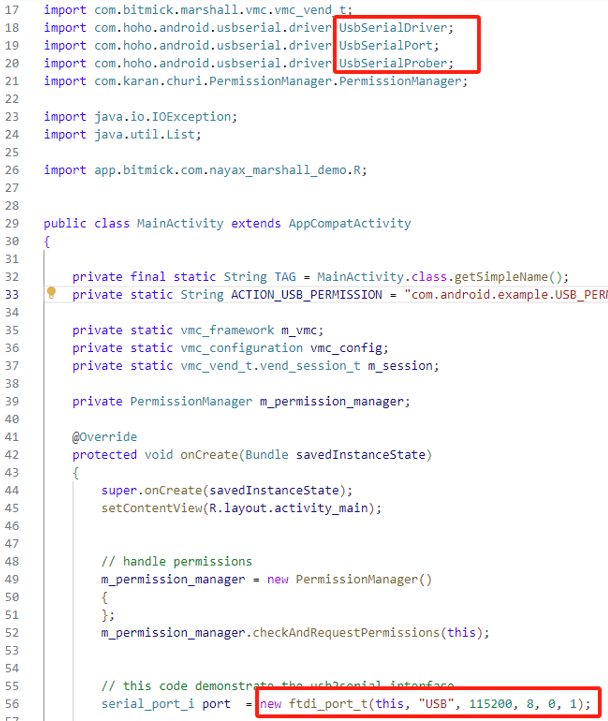 With the Android low-level serial implementation you cannot run the demo app itself, but you can still read it as a reference for how to start transactions.
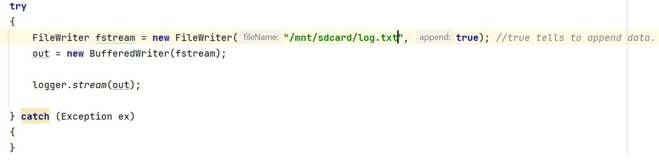
For logging on Android, pass the logger a `BufferedWriter` object. The example below writes to the SD card.
With the Android low-level serial implementation you cannot run the demo app itself, but you can still read it as a reference for how to start transactions.
For logging on Android, pass the logger a `BufferedWriter` object. The example below writes to the SD card.
 ### UART Located at /dev/tty
Android cannot access `/dev/tty...`. You need the vendor's serial port library and an implementation of `serial_port_i` wrapped around it.
FTDI is for a converted USB serial port.
## Update to a Newer SDK Version
Updating an existing integration to a newer SDK version is a file swap.
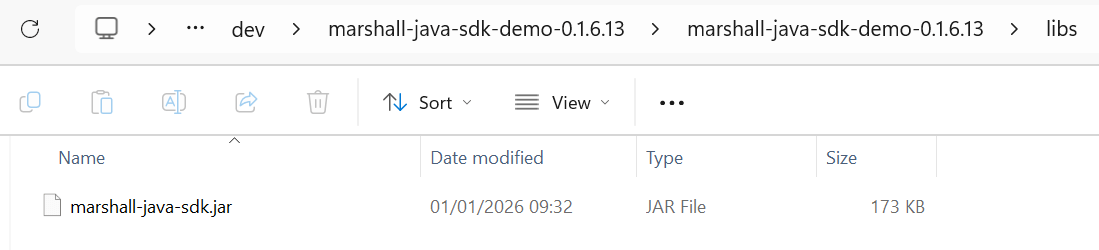
For **Java**, replace the `.JAR` file, which sits in the `libs` folder inside the SDK's directory.
### UART Located at /dev/tty
Android cannot access `/dev/tty...`. You need the vendor's serial port library and an implementation of `serial_port_i` wrapped around it.
FTDI is for a converted USB serial port.
## Update to a Newer SDK Version
Updating an existing integration to a newer SDK version is a file swap.
For **Java**, replace the `.JAR` file, which sits in the `libs` folder inside the SDK's directory.
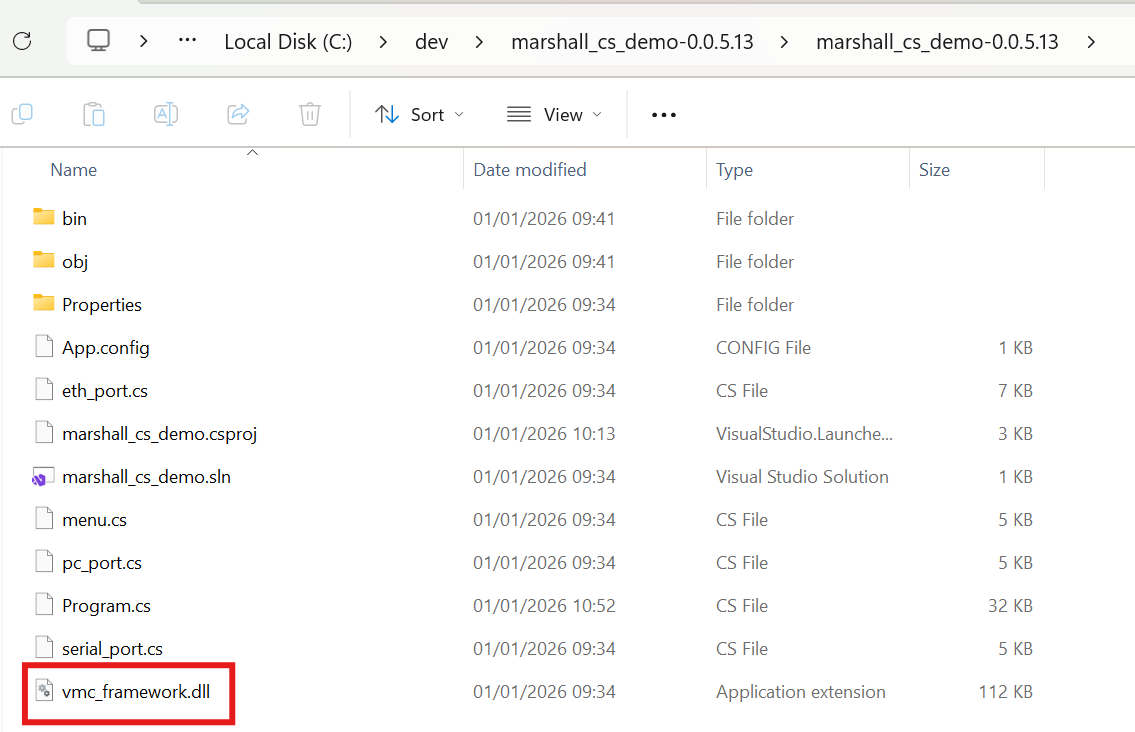
 For **C#**, replace the `.DLL` file, which sits in the SDK's directory.
 ## See Also
Integrate the Marshall C SDK into your platform.
Find reference documentation for all methods and functions in the Marshall SDK.
## See Also
Integrate the Marshall C SDK into your platform.
Find reference documentation for all methods and functions in the Marshall SDK.